Event planning spreadsheet template for a trade show: the tabs, the columns and when to move on
An event planning spreadsheet template for trade shows: seven tabs and their columns, the rules that keep it clean, and the signs it has run its course.
By Moultaka team
What goes in an event planning spreadsheet for a trade show? Seven tabs: timeline, stands, exhibitors, attendees, programme and speakers, suppliers, and budget. Each one follows three rules: one row per thing (a stand, a company, a person), one column that identifies every row without doubt, and statuses picked from a dropdown rather than typed. Kept that way, a spreadsheet carries a first edition or a 200-person conference without trouble. It starts to give way when several people write in it at the same time, and when what it holds has to be copied somewhere else: the website, the floor plan, the badges, the emails. Here is the template, tab by tab, and the signs that tell you it is time to move on.
The event planning spreadsheet template, tab by tab
This layout is built for a trade show with exhibitors. For a seminar or a conference without an exhibition, keep the timeline, attendees, programme, suppliers and budget tabs.
| Tab | One row = | Columns you need |
|---|---|---|
| Timeline | a task | task, owner, due date, status, depends on |
| Stands | a stand | number, hall or zone, size, type (space only, shell scheme), status (available, on hold, sold), company, hold expiry date, amount, salesperson |
| Exhibitors | a company | company name, main contact, email, phone, stand(s), contract signed, payment, logo received, fascia name, staff list, orders |
| Attendees | a person | email, first name, last name, company, job title, profile (visitor, VIP, press, speaker), source, registration date, badge sent |
| Programme | a session | day, time, room, title, format, speakers, moderator, status (confirmed, tentative) |
| Suppliers | an order | supplier, item, quantity, quote, purchase order, delivery date, status |
| Budget | an income or expense line | category, planned, committed, paid, variance |
Add an eighth tab, “Lists”, holding the allowed values for every status, hall and profile. The other tabs point to it through a dropdown (Data, then Data validation, in both Excel and Google Sheets). That is the difference between a sheet you can filter and a sheet where “Sold”, “sold” and “paid OK” sit side by side.
The budget tab deserves its own template, which you will find in our trade show budget template. For the order of tasks, start from our trade show planning timeline.
Rules that keep the spreadsheet clean
A planning sheet decays fast, because everyone writes in it under pressure. These habits keep it readable up to show day:
- One row, one thing. An exhibitor with two stands keeps a single row in “Exhibitors”; the “Stands” tab carries two rows in its name.
- One key per row. Email for a person, number for a stand, the company name always spelt the same way. Without a key, lookups and cross-checks fail.
- Statuses in a dropdown, never free text, never colour alone. A cell turned green cannot be filtered or counted.
- Dates as dates, not “end of March” or “after the holidays”. Otherwise sorting and reminders stop working.
- No merged cells, and the header row frozen. Merges break sorting, filters and copies.
- An “updated on / by” column on every tab that several people edit.
- One owner per tab. Everyone can read; one person is the reference for stands, one for exhibitors, one for attendees.
Excel or Google Sheets: one file of record
The most common trap is not in the formulas but in the copies. The file goes out as an attachment, comes back edited, goes out again as “show_v4_FINAL_ok.xlsx”, and another version travels on WhatsApp. Two weeks later, nobody knows which one is right.
A file shared online, in Google Sheets or in Excel on OneDrive or SharePoint, solves part of it: everyone writes in the same file. Restrict editing tab by tab where the tool allows it, and stop sending attachments: send the link.
Remember too that the “Attendees” tab holds personal data. If you register people from the EU, the GDPR applies to it: limit who opens the file, and do not forward it to a supplier who only needs one column.
The Stands tab, the most fragile one
This is the tab that costs the most when it is wrong. A stand marked available while it is on hold, and two salespeople promise it to two companies.
To keep it straight:
- one status per stand, out of three only: available, on hold, sold;
- a hold expiry date, with conditional formatting that flags expired holds;
- the amount and the salesperson on every sold row, so the revenue total adds itself up;
- one person, and one only, moves a stand to “sold”, when the contract is signed.
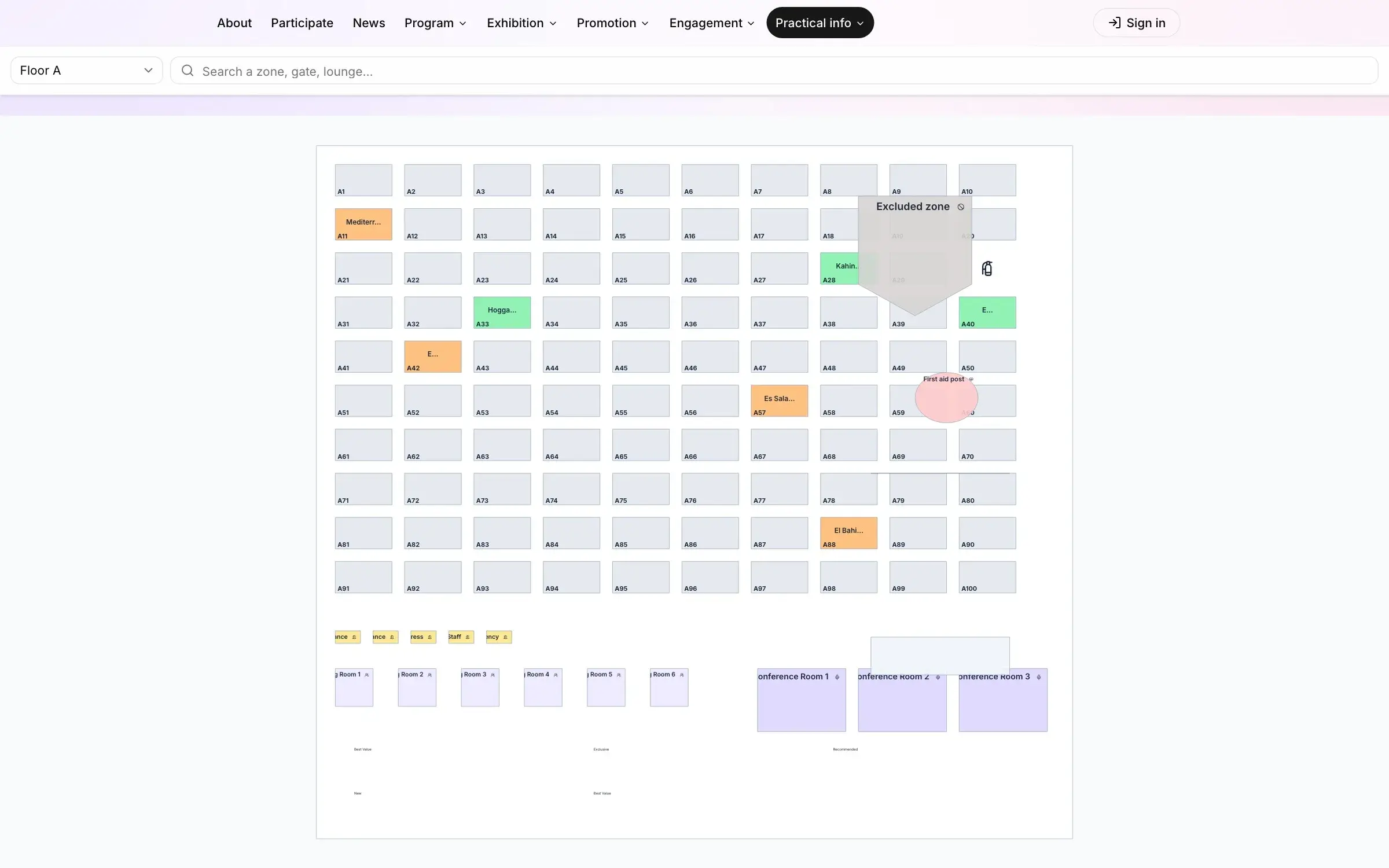
Its limit is the floor plan. The sheet knows a stand is sold; the plan on the wall, or the PDF sent to prospects, does not. Every sale means correcting both, and the day one of them lags, a stand gets sold twice. Our article on how to sell exhibition space from an interactive floor plan goes into it.
Exhibitors and attendees: what the spreadsheet will not do for you
In the “Exhibitors” tab, the columns for logo, fascia name and staff list fill up as exhibitors reply. The sheet chases nobody: your team filters the empty cells and writes to each late exhibitor, one by one, by email and then by phone. With eighty exhibitors, that is weeks of work. Our guide to exhibitor management lists what to ask for, and when.
In the “Attendees” tab, duplicates appear as soon as registrations come from more than one source: the website form, a guest list, a list handed over by a partner. The same person can appear three times, with three spellings of their name. De-duplicate on email (Data, then Remove duplicates, Email column only), never on name.
Signs your event planning spreadsheet has run its course
A spreadsheet is not a mistake; it is often the right tool to start with. It becomes a brake when several of these sound familiar:
- two people edit the same tab at once, and one overwrites the other;
- you copy what is in the sheet somewhere else: the exhibitor list on the website, names on badges, addresses into the email tool;
- a stand has already been promised to two companies;
- the exhibitor list on the website is a week behind the sheet;
- chasing exhibitors takes half a day every week;
- the sponsor report takes a week of copy and paste after the show;
- nobody is sure any more which version of the file is the right one.
Past two or three of these, the spreadsheet costs more time than it saves.
Moving from a spreadsheet to trade show and event management software
Your spreadsheet is not wasted: it is the starting point. Trade show and event management software takes what your tabs described and puts it on one database, where each piece of information is entered once.
In Moultaka, for example:
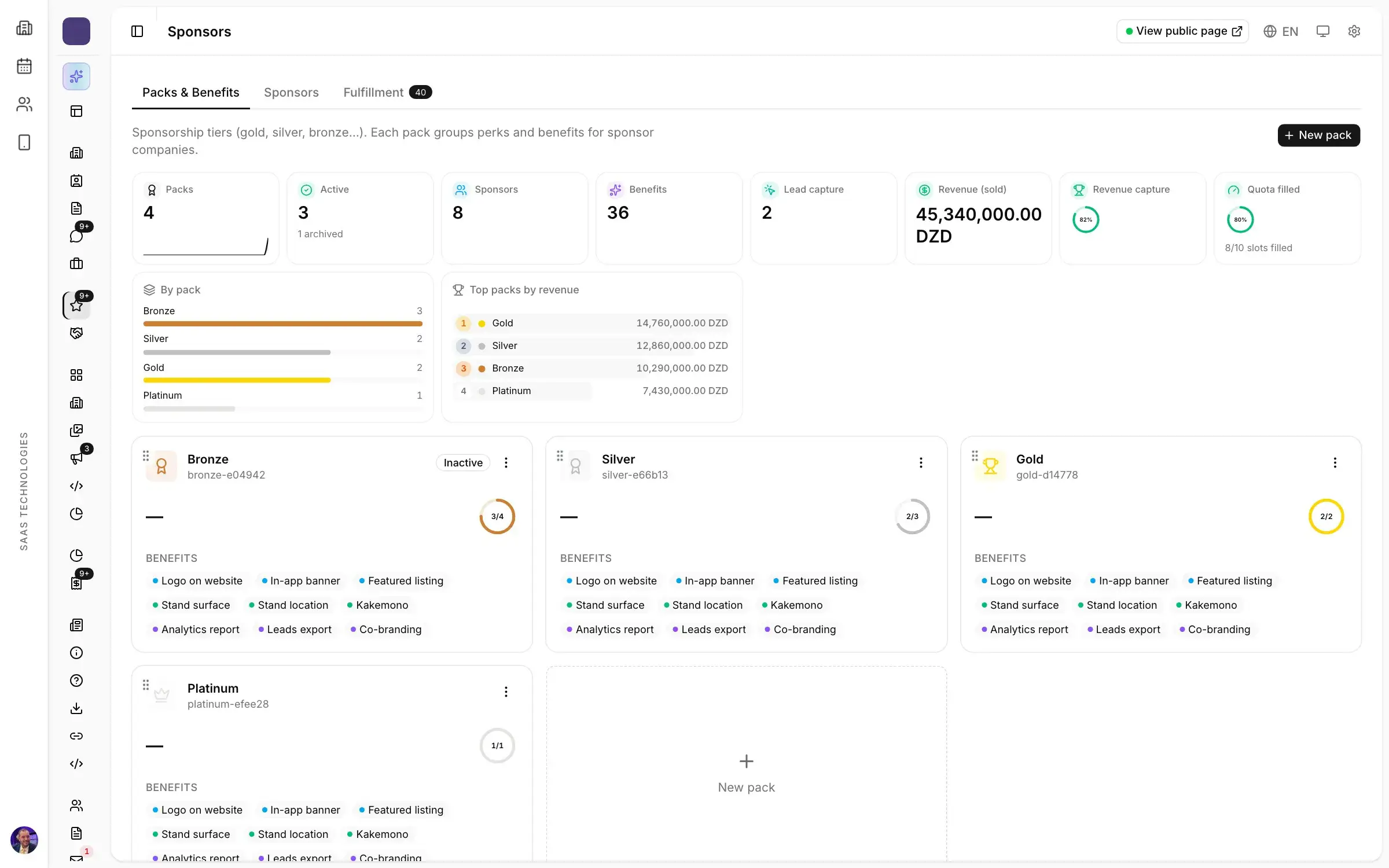
- the Stands tab becomes one live floor plan, with every stand’s status and every deal’s amount shared by the whole team (stand sales);
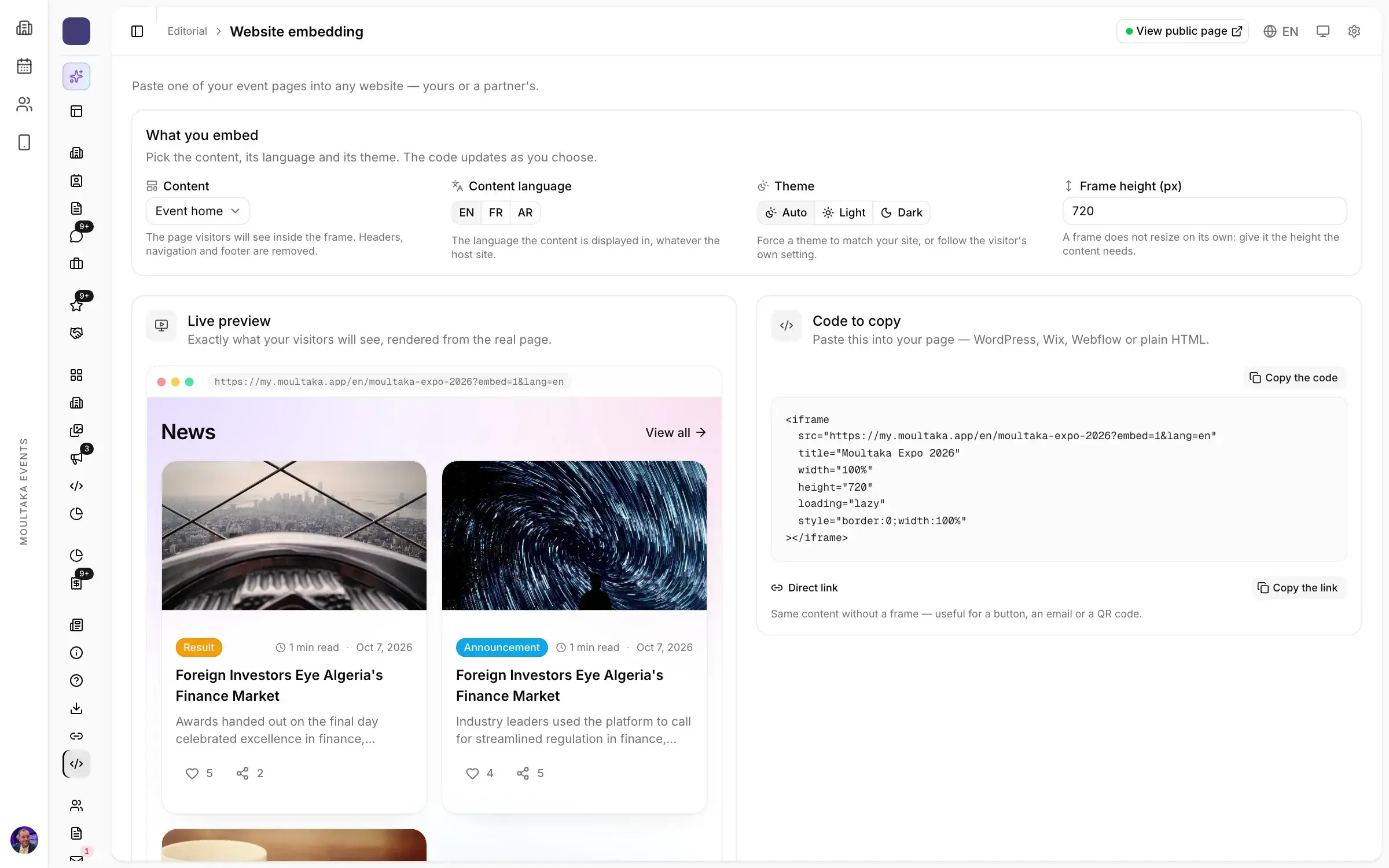
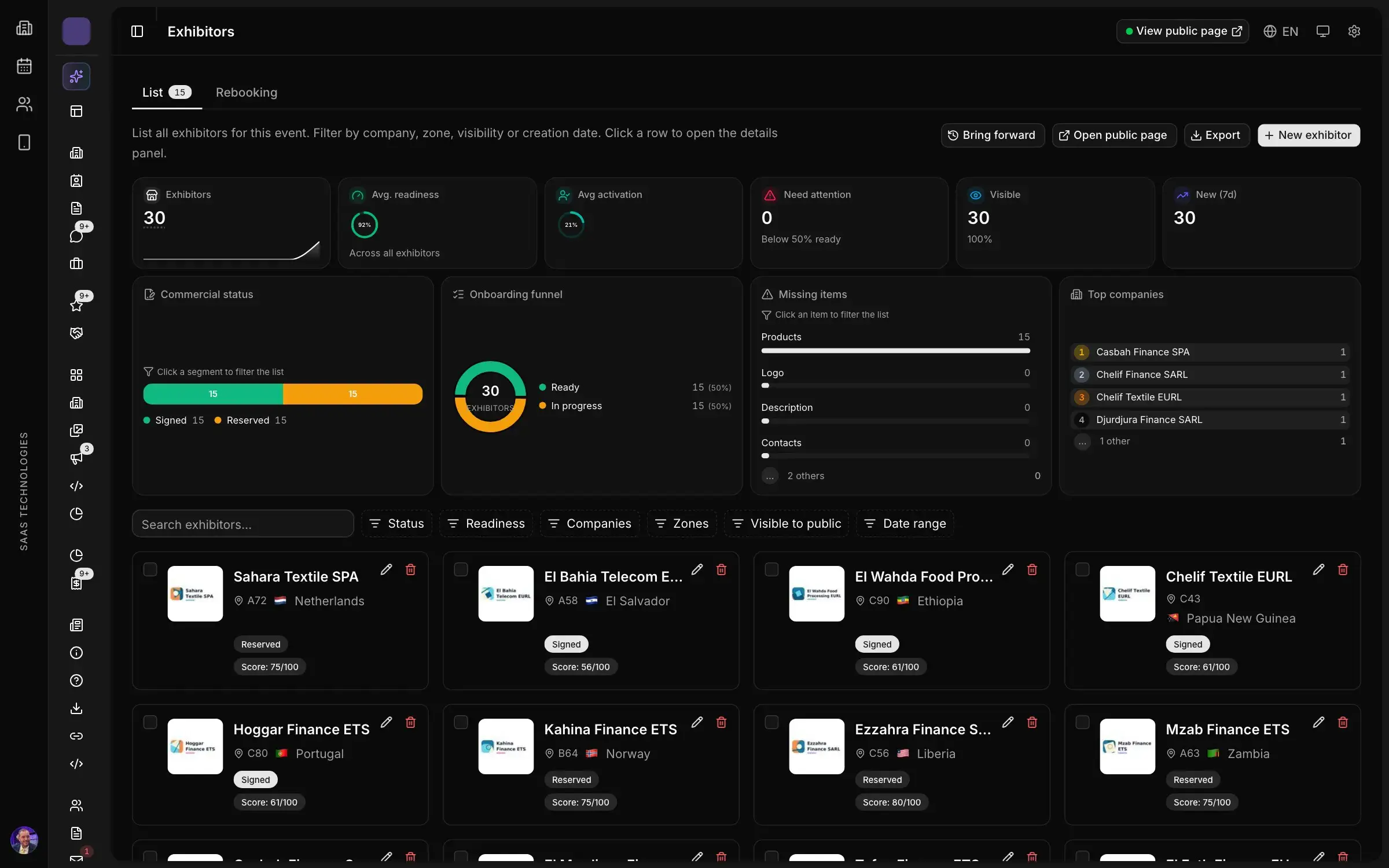
- the Exhibitors tab becomes a space where each exhibitor fills in their own file: you see who is ready, and late exhibitors are chased automatically (exhibitors);
- the Attendees tab becomes online forms, where a second registration with the same email to the same type is recognised as it arrives (registration);
- existing registrations and exhibitors’ teams are imported from a spreadsheet, each column matched to its question;
- and the other way round, lists, reports and figures export to Excel at any time: your data stays yours.
The best time to switch is between two editions, when last year’s file can be cleaned and brought in: see switching event software between editions. To compare tools, start with the questions to ask before a trade show software demo.
Want to see what your own spreadsheet would become? Book a demo: we run it on your show.